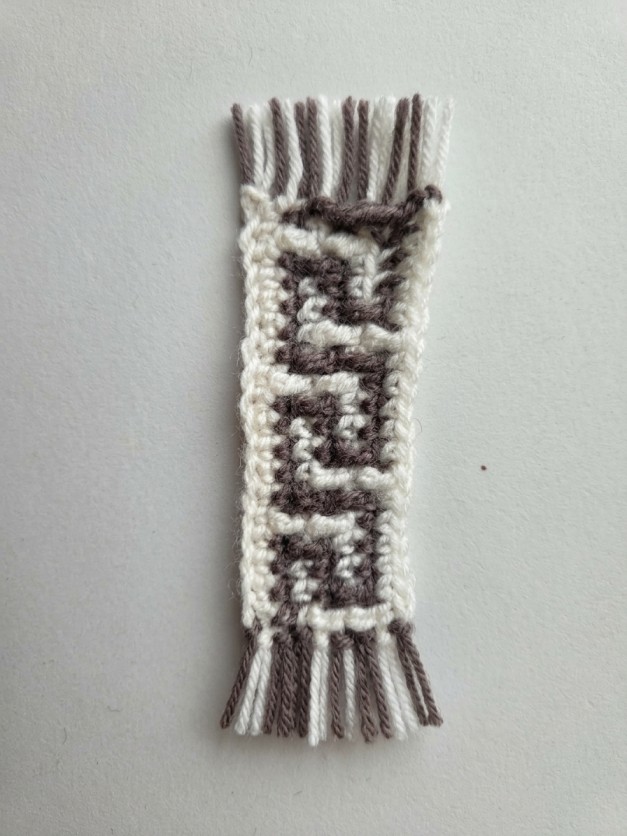
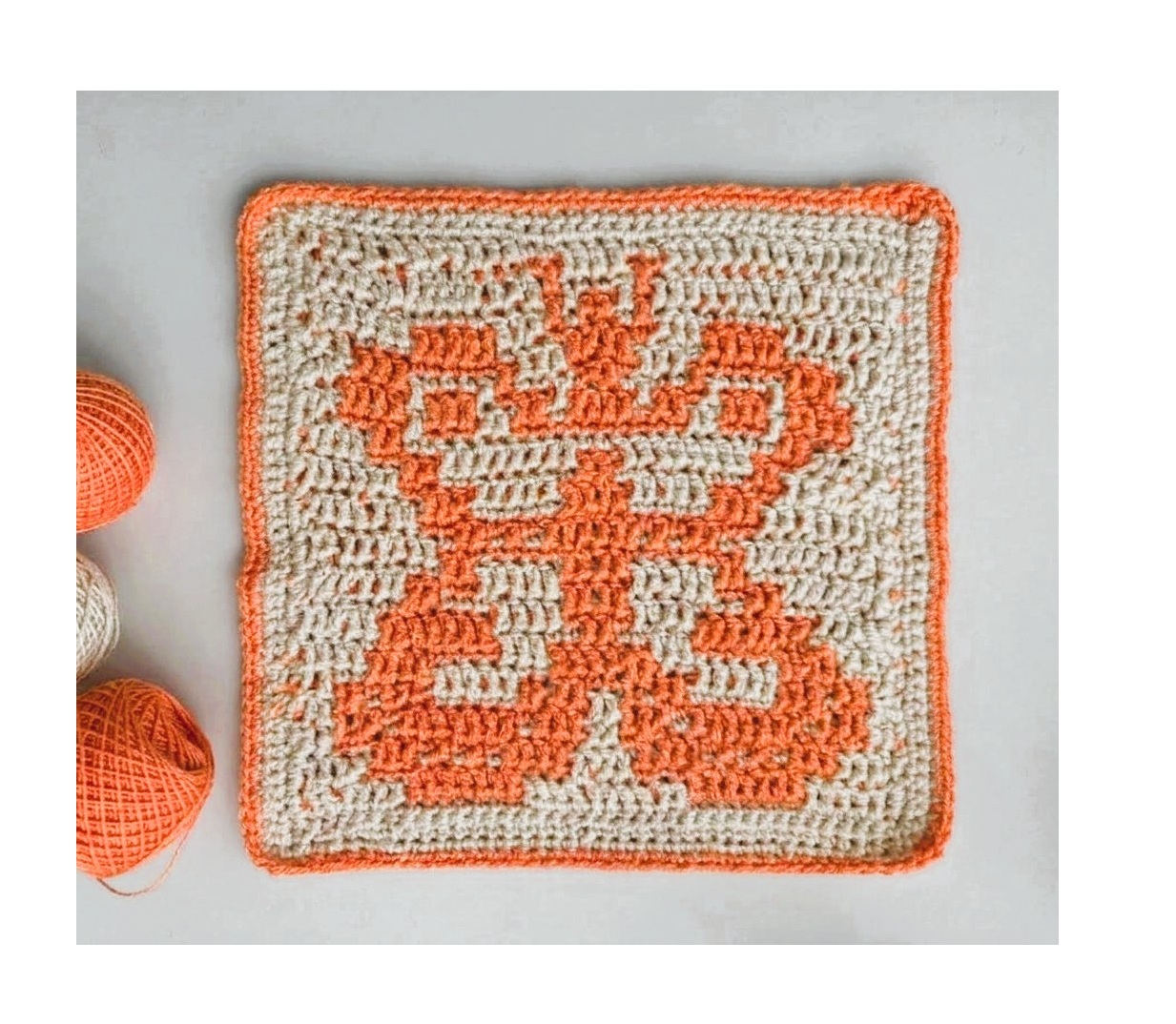
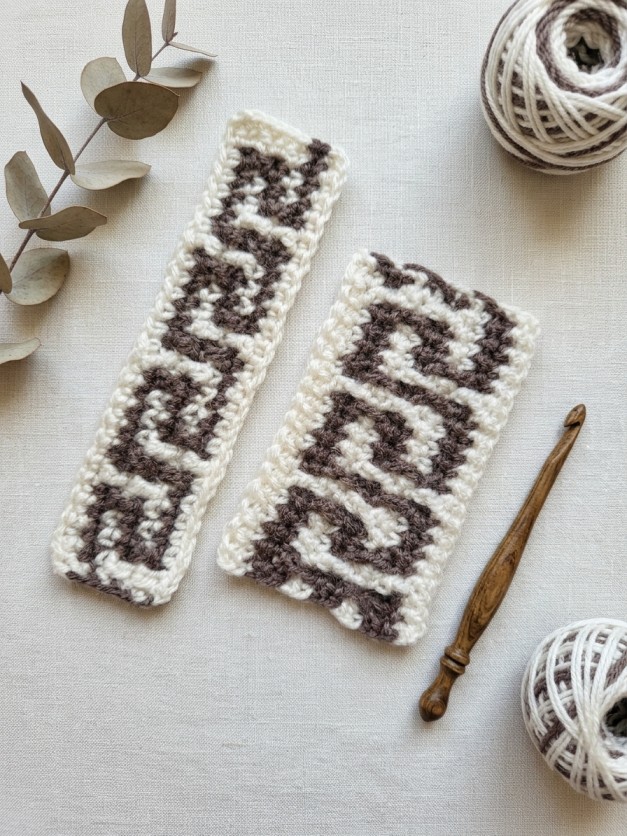
Almost every crocheter has had this moment: you see a picture, maybe your pet, a favorite flower, or a logo, and think I'd love to crochet that. Then comes the hard part. Drawing a chart by hand, cell by cell, takes hours, and it's easy to lose the shape along the way.
That's exactly what image-to-pattern tools solve. You upload a picture, and the tool turns it into a grid you can crochet. In Mosaicery, this works the same way in all three editors: mosaic, colorwork, and filet. So whichever technique you love, you can start from an image instead of a blank grid.
Why so many crocheters look for image-to-pattern tools
- Personal projects are the most meaningful ones. People want to crochet things that matter to them: their dog's face, their child's drawing, a family crest, a favorite band's logo. These designs don't exist as ready-made patterns, so the only way to get them is to make the chart yourself.
- Charting by hand is slow. Even a small motif can take an evening of counting squares on graph paper. A blanket-sized design can take days, and one mistake means redrawing whole sections.
- Not everyone can draw. Plenty of skilled crocheters are confident with a hook but not with a pencil. Converting an image skips the drawing step completely.
- It's a quick way to test ideas. Instead of wondering whether a design will look good in stitches, you can see a preview in seconds and decide before buying yarn.
What people make with it
- Pet portraits on pillows, blankets, and wall hangings
- Names, initials, and logos for bags, beanies, and gifts
- Children's drawings turned into keepsake blankets or cushions
- Graphic blankets with landscapes, flowers, or pop-culture-style art in your own designs
- Pixel art and game sprites, which translate to a grid almost perfectly
- Tote bags, coasters, and wall art with a single bold motif
- Filet curtains, table runners, and doilies with silhouettes of animals, plants, or lettering
The colorwork editor isn't limited to crochet, either. The same chart works for tapestry crochet, fair-isle knitting, cross-stitch, and beading: anything that lives on a colored grid.
How image-to-pattern works in Mosaicery
The process is the same in every editor:
- Upload an image: a photo, a drawing, a sprite, or even an existing chart.
- Mosaicery sizes the grid automatically to match your image's proportions, so nothing gets stretched.
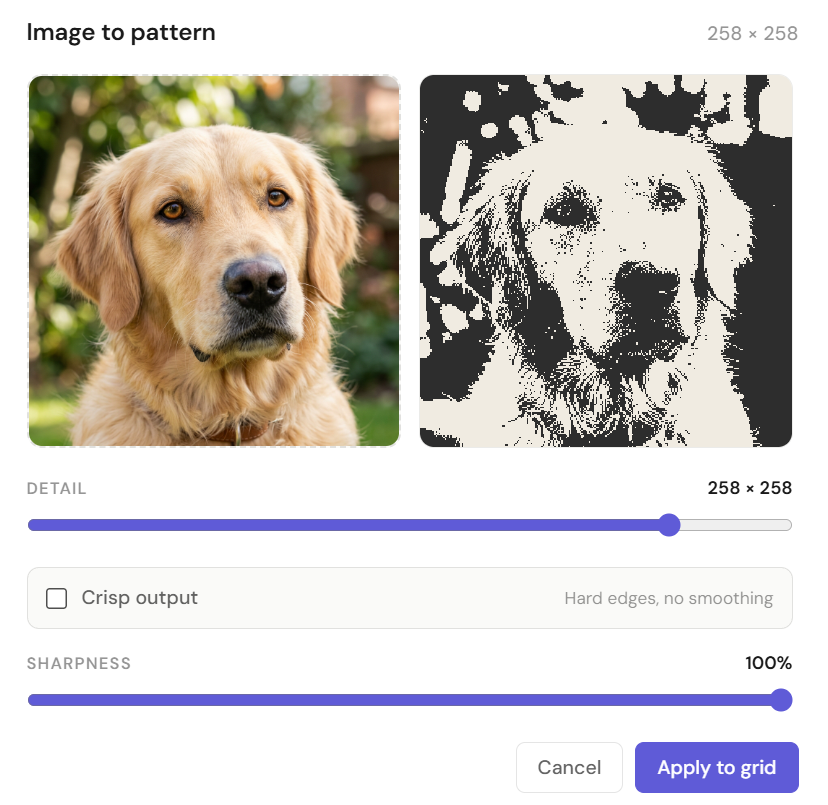
- Tune the result. Adjust the level of detail, sharpness, and number of yarn colors until the chart looks right. For colorwork, Mosaicery extracts a palette that stays true to the original image.
- Refine by hand if you want. Paint over any cells with the brush, use symmetry, or add text.
- Export or follow along. Download a print-ready PDF with the chart and optional row-by-row written instructions, or open the pattern in the tracker and crochet straight from your phone.
Each editor interprets your image in the way that suits its technique. Colorwork keeps multiple colors, mosaic turns the image into a two-color design, and filet turns it into a silhouette of filled and open mesh.
The mosaic advantage using Mosaicery: validation and auto-fix
Mosaic crochet has its own rules. Because of how the stitches are worked, not every combination of cells can actually be crocheted. When you draw a mosaic chart by hand, or use a generic image converter, it's easy to end up with cells that look fine on screen but simply can't be made with yarn. Often you only discover this halfway through a project.
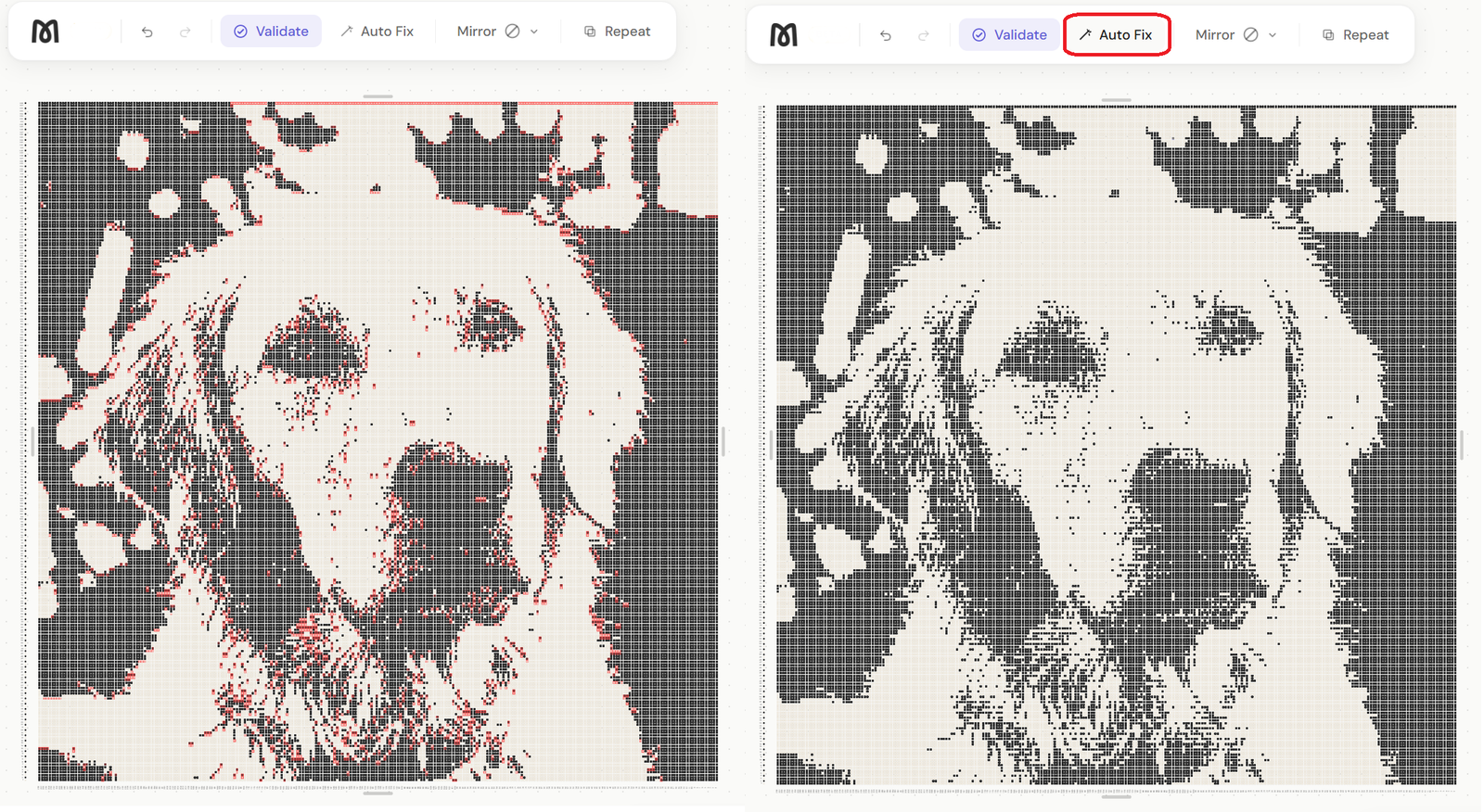
Mosaicery checks this for you. After converting an image in the mosaic editor, validation highlights every cell that breaks mosaic rules. Then, with one click on auto-fix, Mosaicery corrects them all while keeping your design as close to the original as possible. What would take an experienced designer a long time of careful checking takes a second.
And once your chart is ready, you can export the same design as either overlay or inset mosaic. You only draw it once.
Tips for images that convert well
- Choose strong contrast. A clear subject against a plain background gives the cleanest result, especially for mosaic and filet.
- Keep it simple. Bold shapes convert better than busy scenes with lots of small details.
- Crop first. Cut away anything that isn't part of your design before uploading.
- Think about size. A larger grid shows more detail but means more stitches. Mosaicery supports grids up to 300 × 300, enough for a full blanket.
- Check the real size. Use the gauge planner to see how big your chart will be with your yarn and hook.
Try it with your own image
Mosaicery is free during our launch, with every feature unlocked. Pick a picture you love, upload it, and your first chart can be ready before your coffee gets cold.